
[ad_1]
Bank Statements are handy when calculating your monthly expenses or filing your income tax return. However, with bank statements in PDF format, you can’t apply formulas or write a note next to miscellaneous entries. Usually, banks offer the option to download the statement directly in Excel (XLSX) format. However, there are still some banks that support only PDF downloads. In this read, we will help you convert your locked bank statement to Excel readable format to ease out your work.
How to Convert Your Bank Statement to Excel Format
Below we have mentioned the best online tools that allow you to convert your bank statement to Excel readable (XLSX) format, so you can apply formulas to manage your monthly expenses or even hand over your statement to the person filing your income tax return.
Method 1 – I Love PDF
The I Love PDF is one of the best online tools to convert your Bank Account statement into Excel (CSV or XLSX) format. Though the process includes two tools, it gets the job done. the results are flawless, and that too for free. Here’s how to use it:
Unlocking The Bank Statment
1. Visit the Unlock PDF tool on the ILovePDF website.
2. Upload or fetch your bank statement from Google Drive or Dropbox.
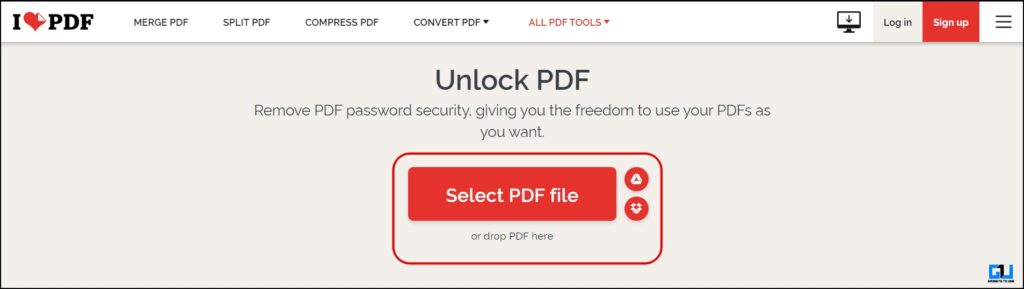
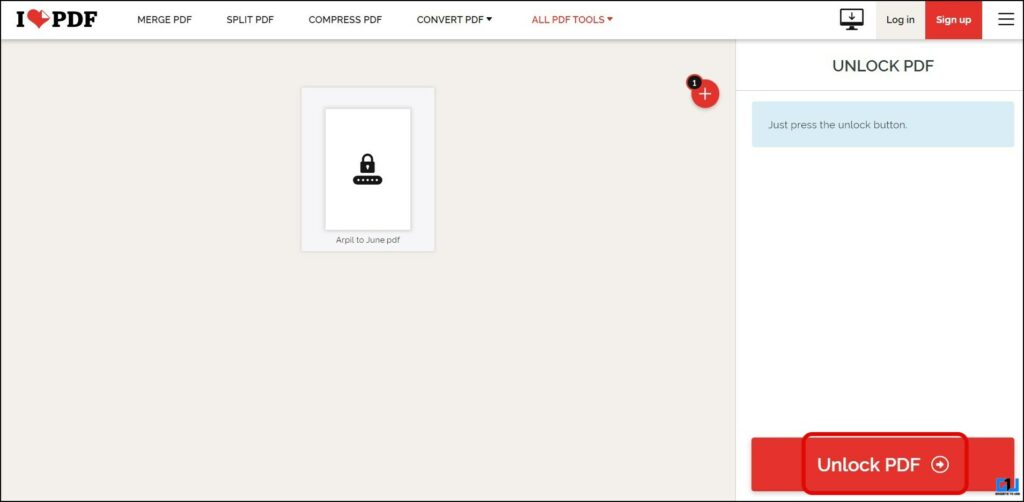
3. Click the Unlock PDF button.
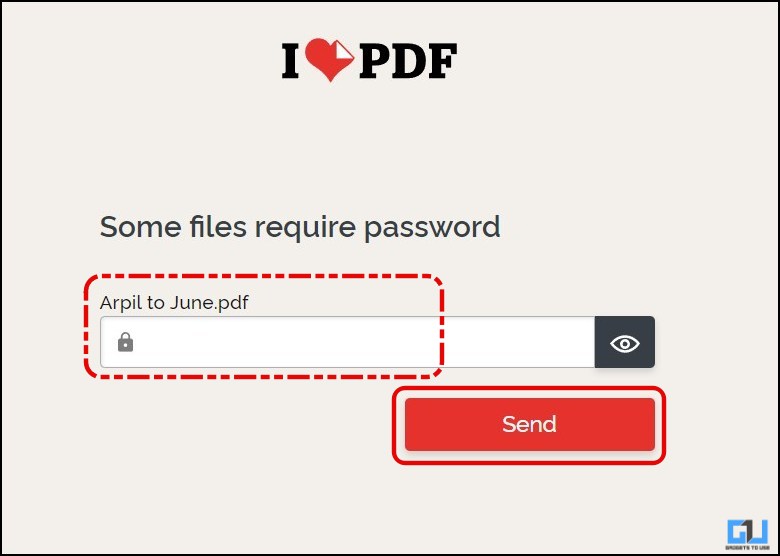
4. On the next screen, enter your PDF password, and click Send button. (The password is mentioned in the email from the bank)
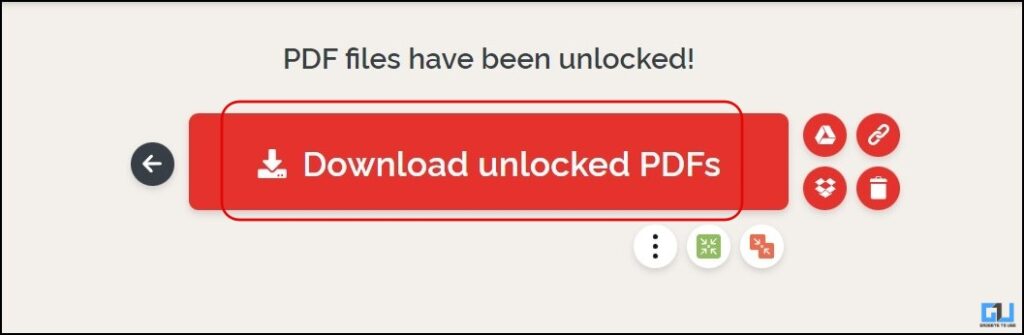
5. Click Download unlocked PDFs to save the unlocked file to your PC or mobile.
Converting Unlocked PDF to Excel
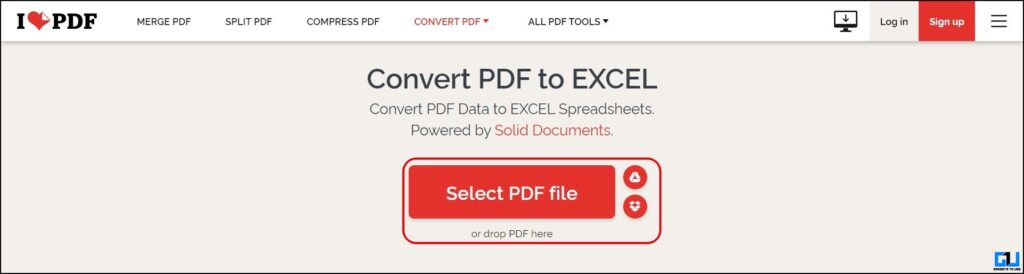
1. Visit the Convert PDF to Excel tool on the ILovePDF website.
2. Upload or fetch your bank statement from Google Drive or Dropbox.
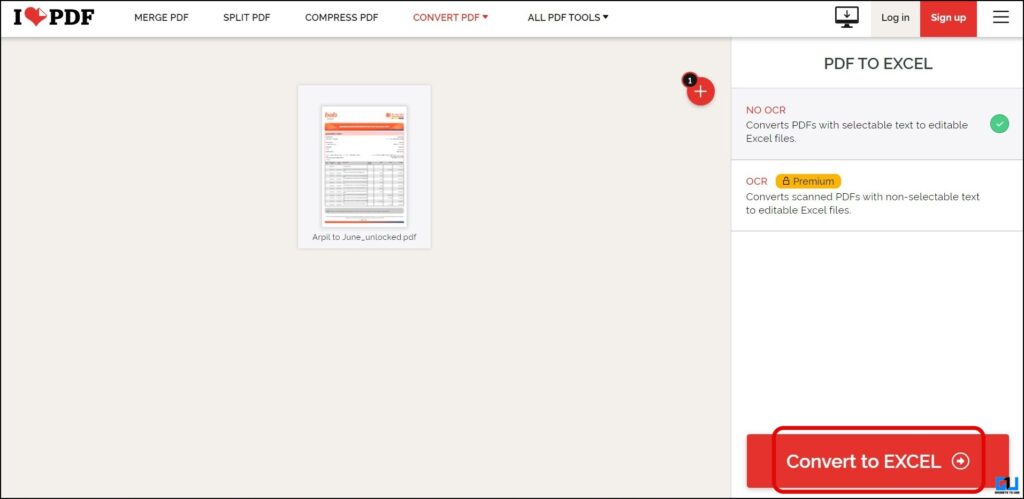
3. Once the file is uploaded, click the Convert to Excel button.
4. After the conversion to XLSX, the file will be available to download.
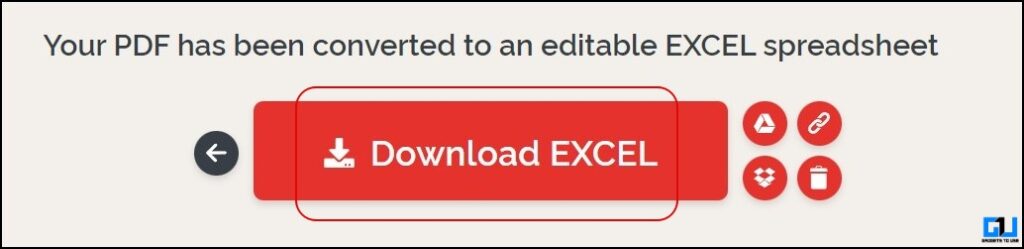
You can now open this XLSX file in Microsoft Excel or Google Sheets, and all the formatting remains intact.
Method 2 – Adobe PDF to Excel
The Adobe PDF to Excel converter is the next best way to convert your bank statement into an Excel-readable format. The best thing about Adobe Converter is that it automatically merges the pages of your bank statement to create a single Excel sheet for ease of use.
1. Visit the Adobe PDF to Excel converter on a web browser, and click Select a File to upload your unlocked statement.
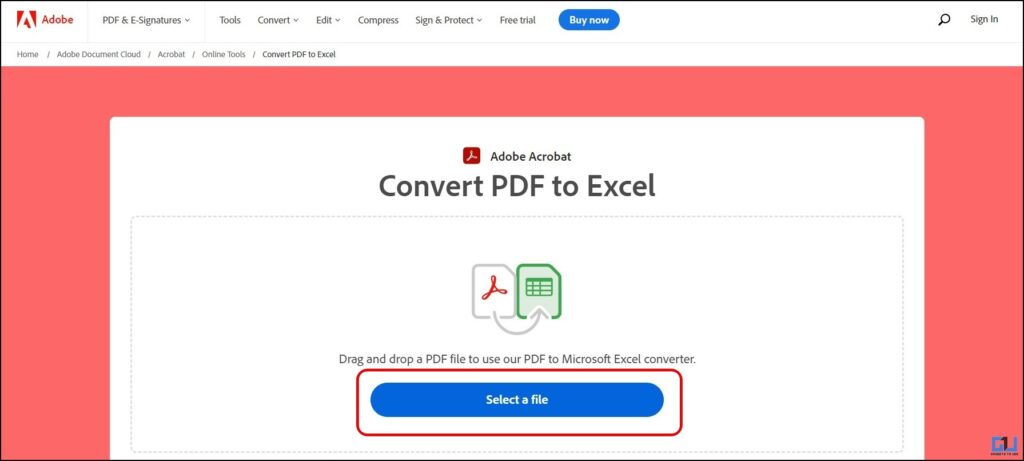
2. The file will be instantly converted to XLSX format.
3. Click the download button to save the converted file to the local storage.
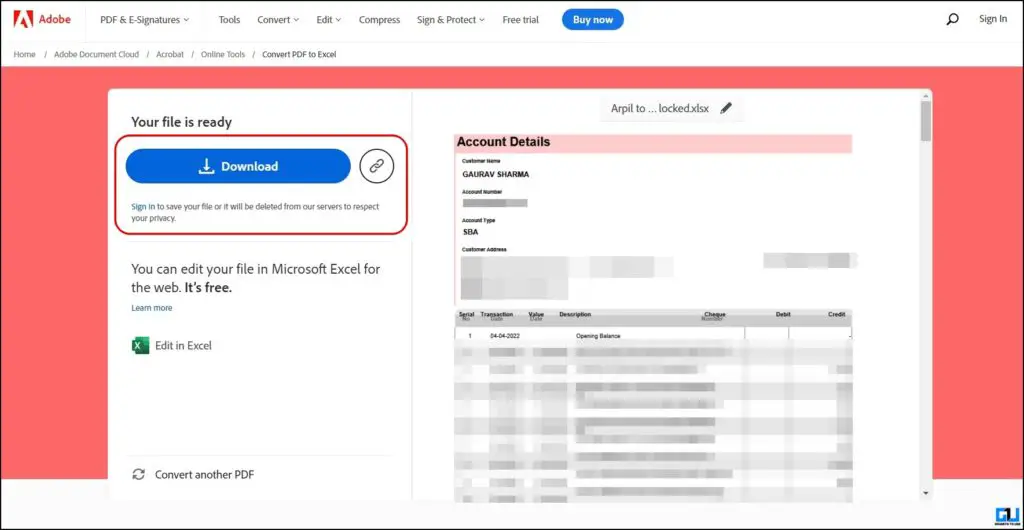
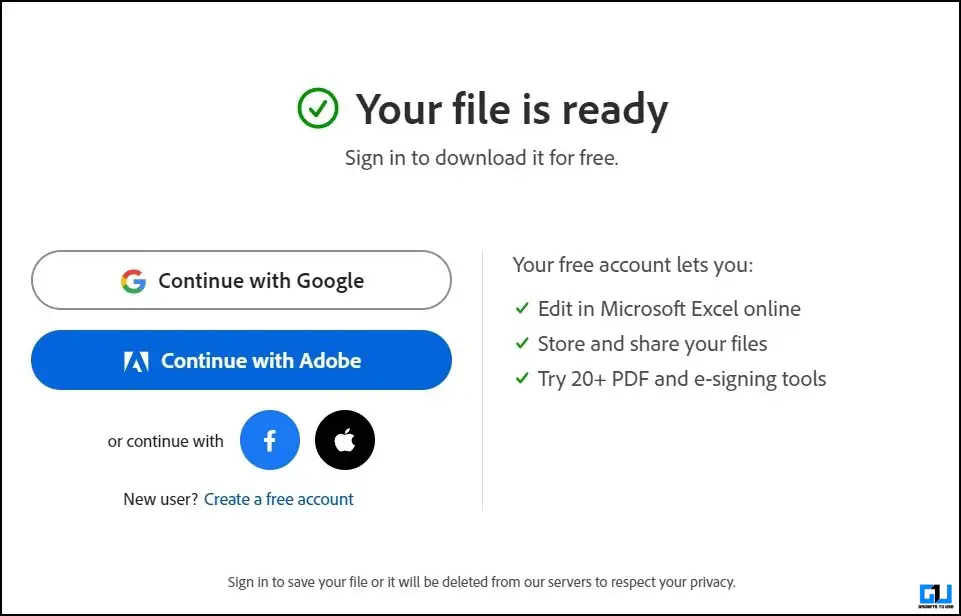
You can convert only one PDF anonymously; you must sign in to your Adobe account to convert multiple PDF files.
Method 3 – Bank Statement Converter
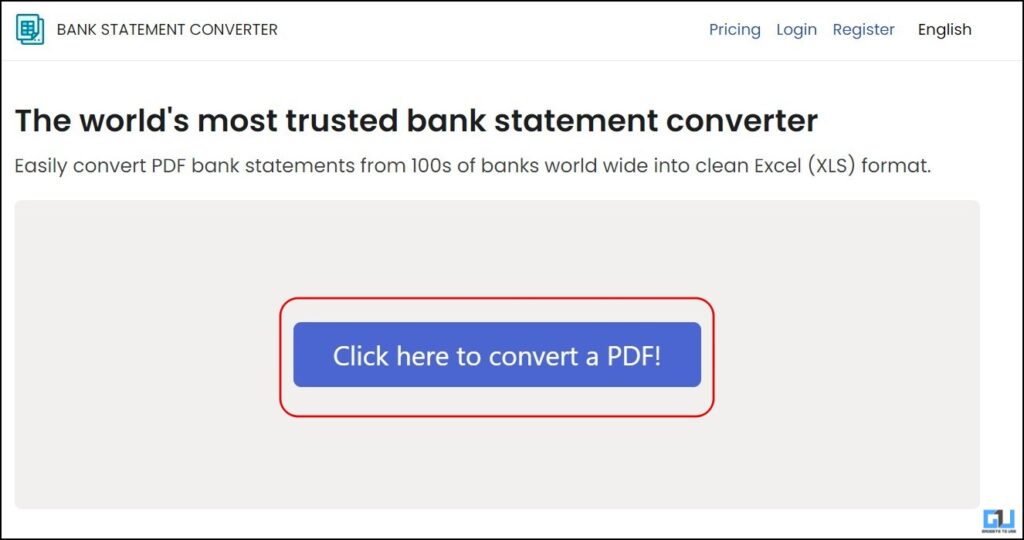
Another useful tool to convert your bank statement to Excel is the Bank Statement Converter tool; it can directly convert a locked statement to excel. Here’s how it works:
1. Visit the Bank Statement Converter Website on a browser, and upload your locked PDF from the Click Here to Convert a PDF.
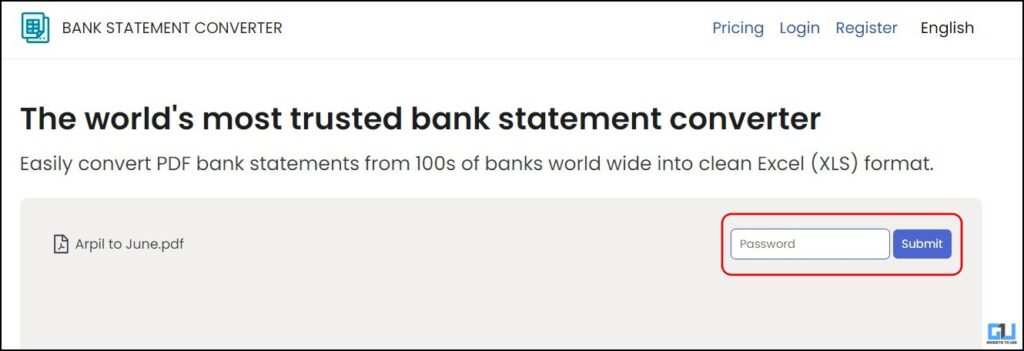
2. On the next screen, enter the password and click Submit. (The password is mentioned in the email from the bank)
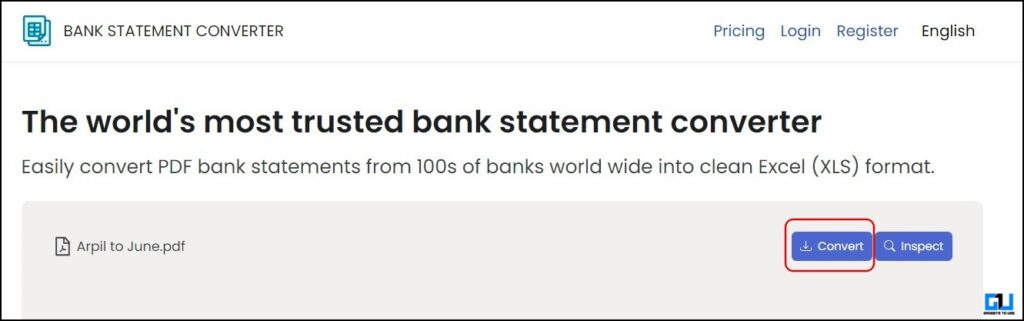
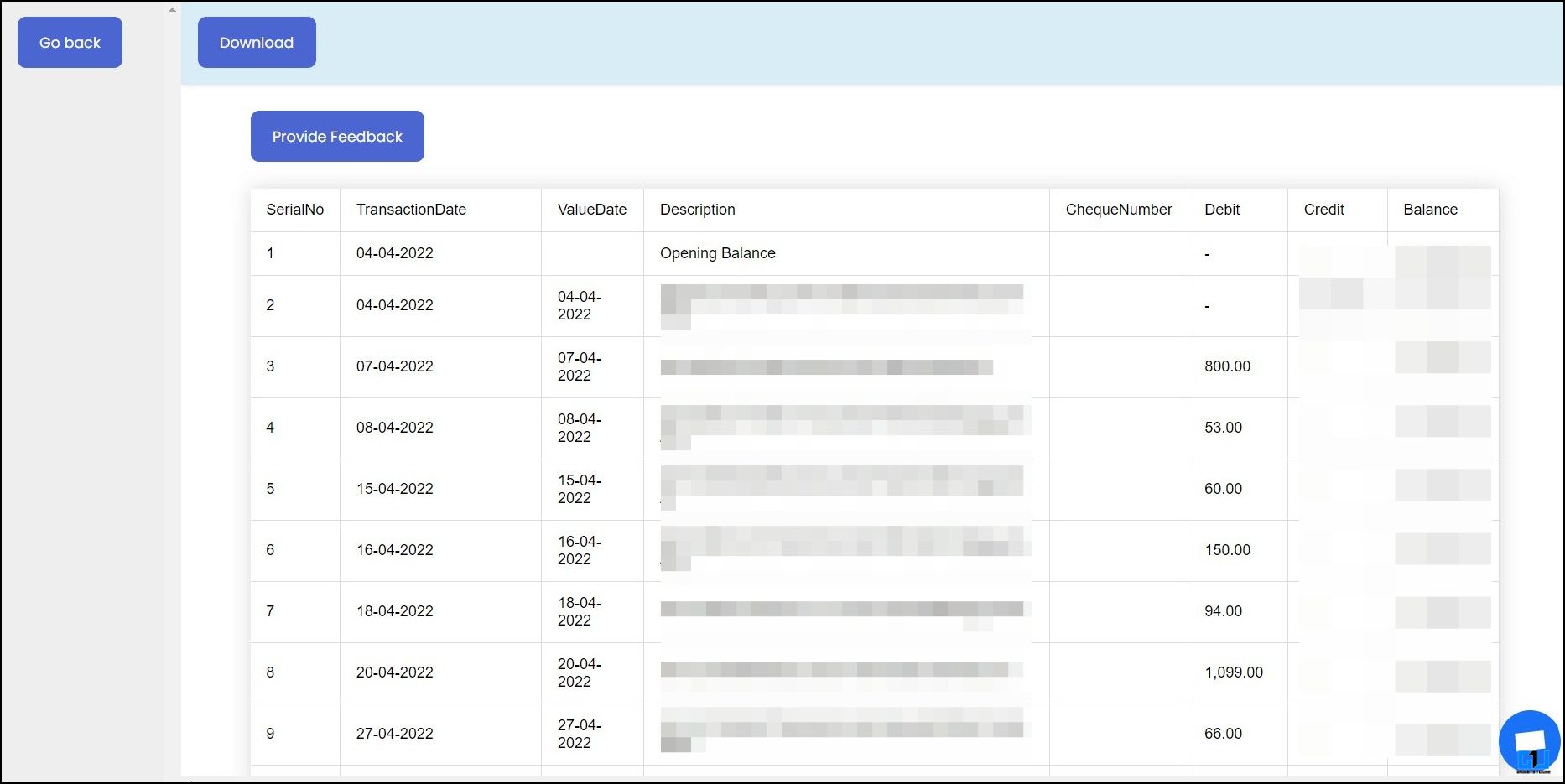
3. Click the Convert button to see the bank statement in Excel format; with the Inspect button, the statement can be viewed in PDF format.
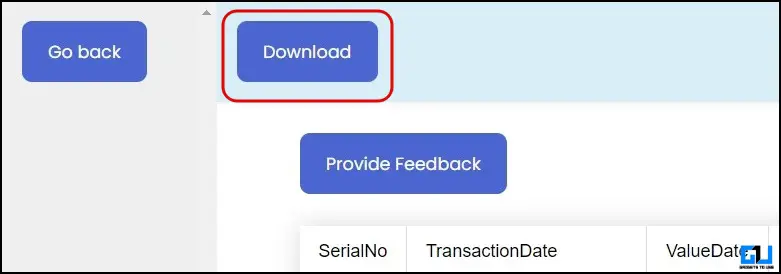
4. Click the Download button to save the bank statement in Microsoft Office Excel Comma Separated Values File format.
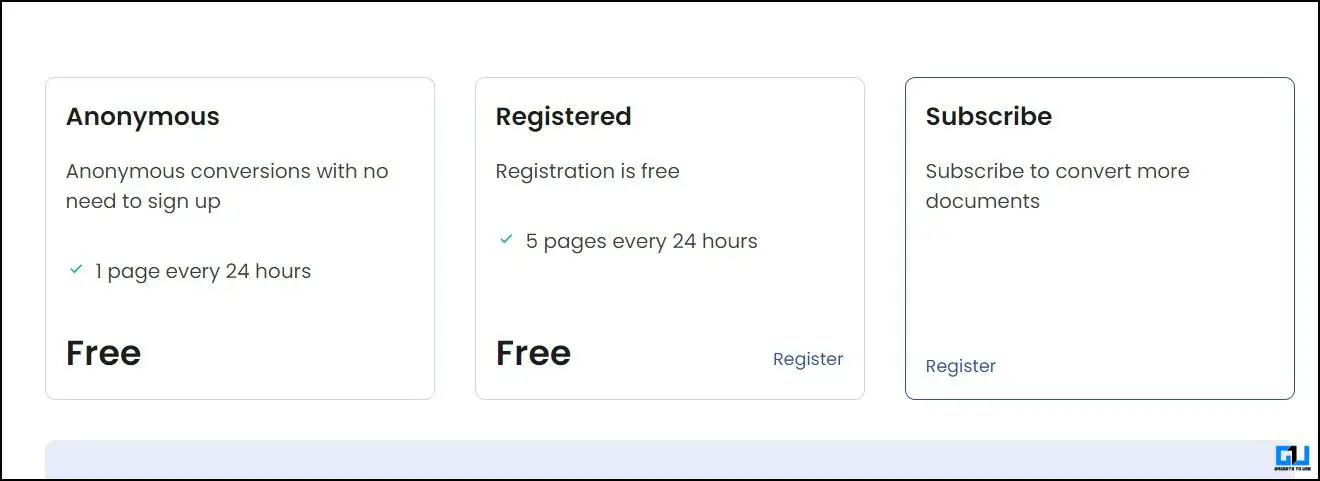
It can convert one page every 24 hours without login; you can register for Free to convert 5 pages every 24 hours.

Method 4 – PDFTables
As the name suggests, the PDFTables tools also allow to convert a PDF to excel readable format. However, it does not work with locked PDFs, so you need to first unlock your bank statement, and then convert it following the below mentioned steps.
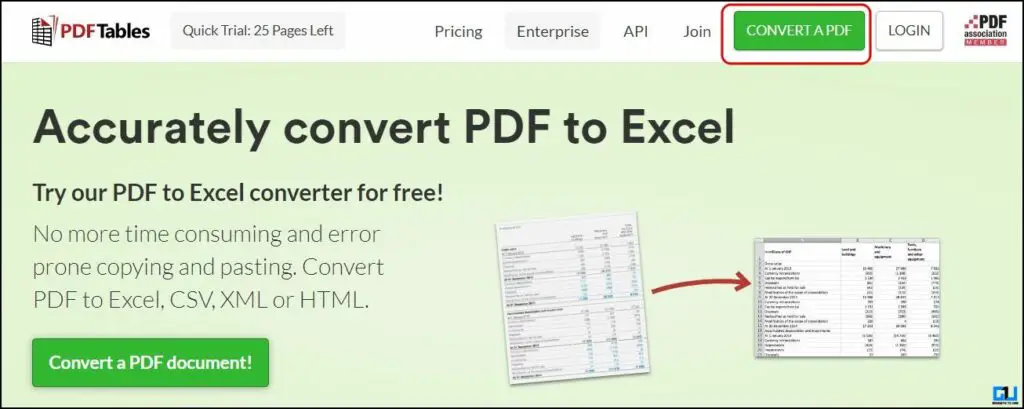
1. Visit the PDF tables website on a browser, and click Convert a PDF.
2. Upload the unlocked bank statement PDF from your device. You can use the ILovePDF to unlock the file.
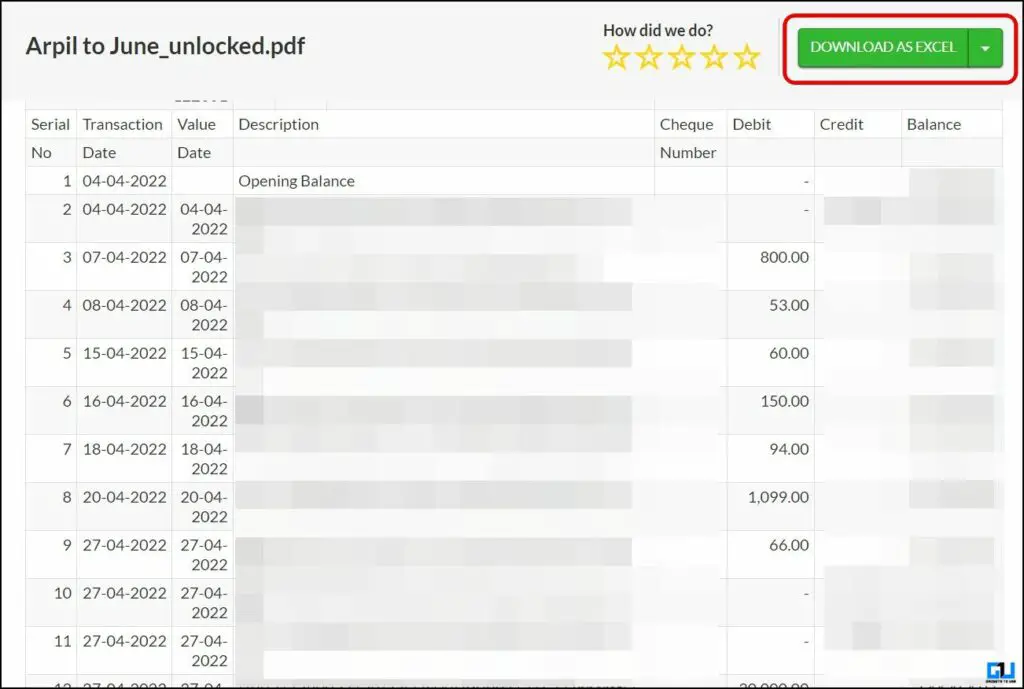
3. Click Download as Excel to save the file in XLSX format.
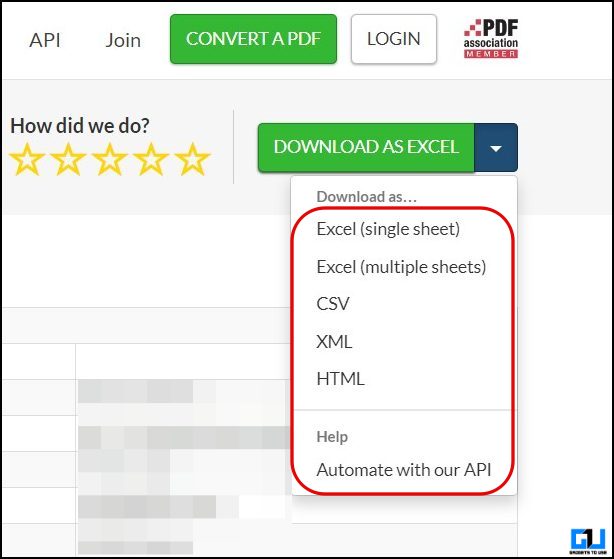
From the drop-down menu, you can choose to download it as a single sheet Excel or a multi-sheet Excel, and more.
Wrapping Up
So this brings us to the end of this article, where we discussed Free online tools to convert your Bank Account statement from PDF to Excel, the best and easy to use tool among them is the Adobe PDF to Excel converter, but it works only with unlocked PDFs. Stay tuned to GadgetsToUse for more such reads, and check the ones linked below.
You might be interested in the following:
You can also follow us for instant tech news at Google News or for tips and tricks, smartphones & gadgets reviews, join GadgetsToUse Telegram Group or for the latest review videos subscribe GadgetsToUse YouTube Channel.
[ad_2]
Source link